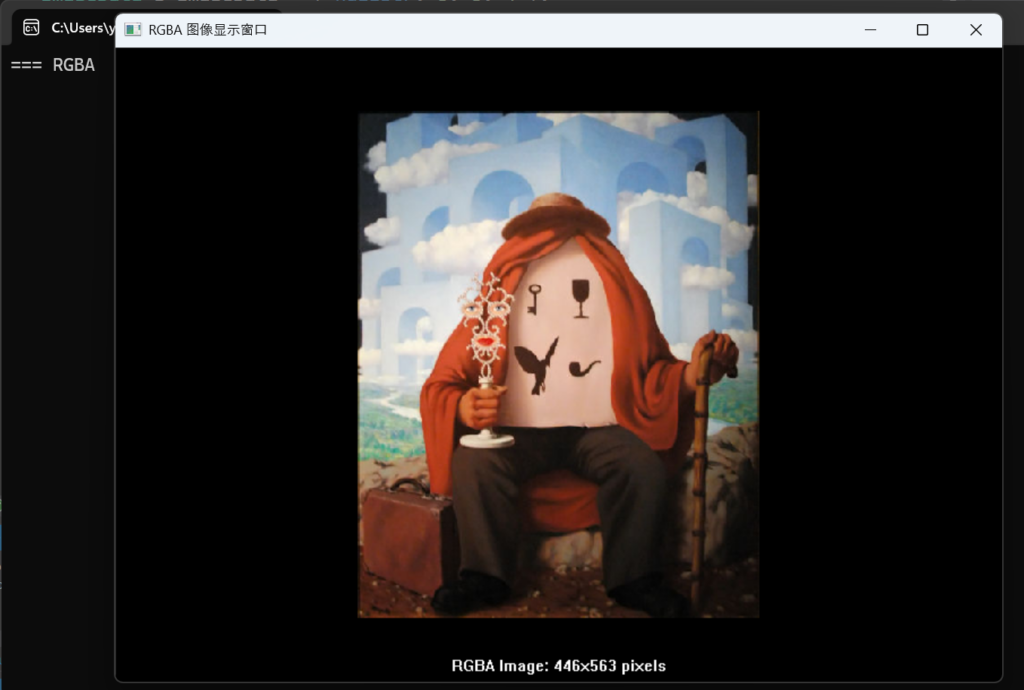
#include <windows.h>
#include <iostream>
#include <cstdint>
#include <memory>

#include <stdio.h>
#include <stdlib.h>
#include "ok_jpg.h"

#pragma warning(disable:4996)

// 添加这行来链接必要的库
#pragma comment(lib, "msimg32.lib")

// 全局变量
HWND g_hWnd = NULL;
const wchar_t* CLASS_NAME = L"RGBAImageWindow";

// 图像数据结构
struct ImageData {
    uint8_t* data;
    int width;
    int height;
    int channels; // 4 for RGBA
};

ImageData g_imageData = { nullptr, 0, 0, 4 };

// 创建测试用的 RGBA 图像数据
void CreateTestRGBAImage() {

    FILE* file = fopen("./my_image.jpg", "rb");
    ok_jpg image = ok_jpg_read(file, OK_JPG_COLOR_FORMAT_RGBA);
    fclose(file);

    g_imageData.width = image.width;
    g_imageData.height = image.height;
    g_imageData.channels = 4;

    g_imageData.data = image.data;

}

// 将 RGBA 数据转换为 Windows 位图并绘制
void DrawRGBAImage(HDC hdc, const ImageData& imageData, int destX, int destY, int destWidth, int destHeight) {
    if (!imageData.data || imageData.width <= 0 || imageData.height <= 0) {
        return;
    }

    // 创建 DIB (Device Independent Bitmap) 信息
    BITMAPINFO bmi = {};
    bmi.bmiHeader.biSize = sizeof(BITMAPINFOHEADER);
    bmi.bmiHeader.biWidth = imageData.width;
    bmi.bmiHeader.biHeight = -imageData.height; // 负值表示从上到下
    bmi.bmiHeader.biPlanes = 1;
    bmi.bmiHeader.biBitCount = 32; // RGBA = 32 bits
    bmi.bmiHeader.biCompression = BI_RGB;

    // 创建兼容的内存 DC
    HDC memDC = CreateCompatibleDC(hdc);
    void* pBits = nullptr;
    HBITMAP hBitmap = CreateDIBSection(hdc, &bmi, DIB_RGB_COLORS, &pBits, NULL, 0);

    if (hBitmap && pBits) {
        // 将 RGBA 数据复制到位图 (注意:Windows 使用 BGRA 格式)
        uint8_t* destData = static_cast<uint8_t*>(pBits);
        for (int i = 0; i < imageData.width * imageData.height; i++) {
            int srcIndex = i * 4;
            int destIndex = i * 4;

            destData[destIndex + 0] = imageData.data[srcIndex + 2]; // B
            destData[destIndex + 1] = imageData.data[srcIndex + 1]; // G
            destData[destIndex + 2] = imageData.data[srcIndex + 0]; // R
            destData[destIndex + 3] = imageData.data[srcIndex + 3]; // A
        }

        // 选择位图到内存 DC
        HBITMAP hOldBitmap = static_cast<HBITMAP>(SelectObject(memDC, hBitmap));

        // 使用 AlphaBlend 支持透明度
        BLENDFUNCTION blendFunc = {};
        blendFunc.BlendOp = AC_SRC_OVER;
        blendFunc.BlendFlags = 0;
        blendFunc.SourceConstantAlpha = 255;
        blendFunc.AlphaFormat = AC_SRC_ALPHA;

        // 绘制到目标 DC,支持缩放
        AlphaBlend(hdc, destX, destY, destWidth, destHeight,
            memDC, 0, 0, imageData.width, imageData.height, blendFunc);

        // 清理资源
        SelectObject(memDC, hOldBitmap);
        DeleteObject(hBitmap);
    }

    DeleteDC(memDC);
}

// 窗口过程函数
LRESULT CALLBACK WindowProc(HWND hwnd, UINT uMsg, WPARAM wParam, LPARAM lParam)
{
    switch (uMsg)
    {
    case WM_PAINT:
    {
        PAINTSTRUCT ps;
        HDC hdc = BeginPaint(hwnd, &ps);

        // 获取窗口客户区大小
        RECT rect;
        GetClientRect(hwnd, &rect);

        // 设置背景为黑色
        FillRect(hdc, &rect, static_cast<HBRUSH>(GetStockObject(BLACK_BRUSH)));

        // 绘制 RGBA 图像,居中显示
        if (g_imageData.data) {
            int windowWidth = rect.right - rect.left;
            int windowHeight = rect.bottom - rect.top;

            // 计算缩放比例以适应窗口
            float scaleX = static_cast<float>(windowWidth) / g_imageData.width;
            float scaleY = static_cast<float>(windowHeight) / g_imageData.height;
            float scale = min(scaleX, scaleY) * 0.8f; // 留一些边距

            int scaledWidth = static_cast<int>(g_imageData.width * scale);
            int scaledHeight = static_cast<int>(g_imageData.height * scale);

            int x = (windowWidth - scaledWidth) / 2;
            int y = (windowHeight - scaledHeight) / 2;

            DrawRGBAImage(hdc, g_imageData, x, y, scaledWidth, scaledHeight);
        }

        // 绘制信息文本
        SetBkMode(hdc, TRANSPARENT);
        SetTextColor(hdc, RGB(255, 255, 255));

        wchar_t info[256];
        swprintf_s(info, L"RGBA Image: %dx%d pixels", g_imageData.width, g_imageData.height);

        RECT textRect = rect;
        textRect.top = rect.bottom - 30;
        DrawText(hdc, info, -1, &textRect, DT_CENTER | DT_VCENTER | DT_SINGLELINE);

        EndPaint(hwnd, &ps);
        return 0;
    }

    case WM_KEYDOWN:
        switch (wParam) {
        case VK_ESCAPE:
            PostMessage(hwnd, WM_CLOSE, 0, 0);
            break;
        case VK_SPACE:
            // 空格键重新生成图像
            if (g_imageData.data) {
                delete[] g_imageData.data;
            }
            CreateTestRGBAImage();
            InvalidateRect(hwnd, NULL, TRUE);
            break;
        }
        return 0;

    case WM_SIZE:
        // 窗口大小改变时重绘
        InvalidateRect(hwnd, NULL, TRUE);
        return 0;

    case WM_CLOSE:
        DestroyWindow(hwnd);
        return 0;

    case WM_DESTROY:
        // 清理图像数据
        if (g_imageData.data) {
            delete[] g_imageData.data;
            g_imageData.data = nullptr;
        }
        PostQuitMessage(0);
        return 0;

    default:
        return DefWindowProc(hwnd, uMsg, wParam, lParam);
    }
}

// 注册窗口类
bool RegisterWindowClass()
{
    WNDCLASS wc = {};
    wc.lpfnWndProc = WindowProc;
    wc.hInstance = GetModuleHandle(NULL);
    wc.lpszClassName = CLASS_NAME;
    wc.hbrBackground = static_cast<HBRUSH>(GetStockObject(BLACK_BRUSH));
    wc.hCursor = LoadCursor(NULL, IDC_ARROW);
    wc.hIcon = LoadIcon(NULL, IDI_APPLICATION);

    return RegisterClass(&wc) != 0;
}

// 创建窗口
HWND CreateAppWindow()
{
    return CreateWindowEx(
        0,
        CLASS_NAME,
        L"RGBA 图像显示窗口",
        WS_OVERLAPPEDWINDOW,
        100, 100,
        800, 600,
        NULL, NULL,
        GetModuleHandle(NULL),
        NULL
    );
}

// 消息循环
void MessageLoop()
{
    MSG msg = {};
    while (GetMessage(&msg, NULL, 0, 0))
    {
        TranslateMessage(&msg);
        DispatchMessage(&msg);
    }
}

// 从外部数据加载 RGBA 图像的函数
void LoadRGBAImage(uint8_t* data, int width, int height) {
    // 清理旧数据
    if (g_imageData.data) {
        delete[] g_imageData.data;
    }

    g_imageData.width = width;
    g_imageData.height = height;
    g_imageData.channels = 4;

    // 复制数据
    size_t dataSize = width * height * 4;
    g_imageData.data = new uint8_t[dataSize];
    memcpy(g_imageData.data, data, dataSize);

    // 刷新窗口
    if (g_hWnd) {
        InvalidateRect(g_hWnd, NULL, TRUE);
    }
}

int main()
{
    SetConsoleOutputCP(CP_UTF8);

    std::wcout << L"=== RGBA 图像显示程序 ===" << std::endl;
    std::wcout << L"正在创建窗口..." << std::endl;

    if (!RegisterWindowClass())
    {
        std::wcout << L"❌ 注册窗口类失败!" << std::endl;
        system("pause");
        return -1;
    }

    g_hWnd = CreateAppWindow();
    if (g_hWnd == NULL)
    {
        std::wcout << L"❌ 创建窗口失败!" << std::endl;
        system("pause");
        return -1;
    }

    // 创建测试图像数据
    CreateTestRGBAImage();

    ShowWindow(g_hWnd, SW_SHOW);
    UpdateWindow(g_hWnd);

    std::wcout << L"✅ 窗口创建成功!" << std::endl;
    std::wcout << L"💡 提示:" << std::endl;
    std::wcout << L"   - ESC 键退出程序" << std::endl;
    std::wcout << L"   - 空格键重新生成图像" << std::endl;
    std::wcout << L"   - 关闭窗口退出程序" << std::endl;

    MessageLoop();

    std::wcout << L"程序已退出。" << std::endl;
    return 0;
}