用示波器“看” arduino (2)

有一个网友提出一个问题“现在要进行一个0.4us的延时,发现不管怎么调都只能调到15us,根本达不到要求,我用的芯片是MEGA32U4-AU,外部晶振是16MHz,求见解!!!!!”
我试验了一下,最终的程序如下:

const int PinA =  13;      
void setup() {
  pinMode(PinA, OUTPUT);
  digitalWrite(PinA,LOW);
}

void loop() {
  PORTB = B100000; //digitalWrite(PinA,HIGH); 
  PORTB = B000000; //digitalWrite(PinA,LOW);  
    for (long zdelay=0;zdelay<9; zdelay++) {
    __asm__("nop\n\t");
  }
  PORTB = B100000; //digitalWrite(PinA,HIGH);
  PORTB = B000000; //digitalWrite(PinA,LOW);
  PORTB = B100000; //digitalWrite(PinA,HIGH);  
  PORTB = B000000;  //digitalWrite(PinA,LOW);  
}


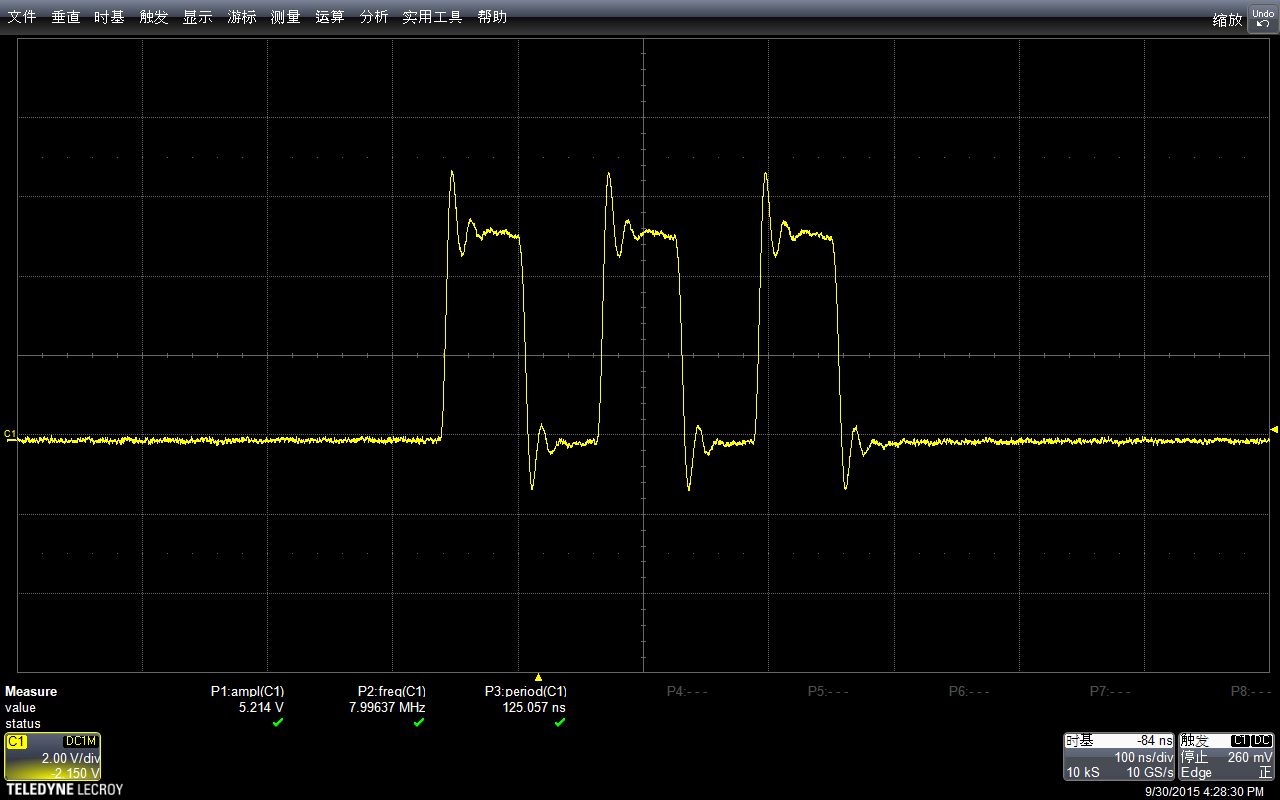
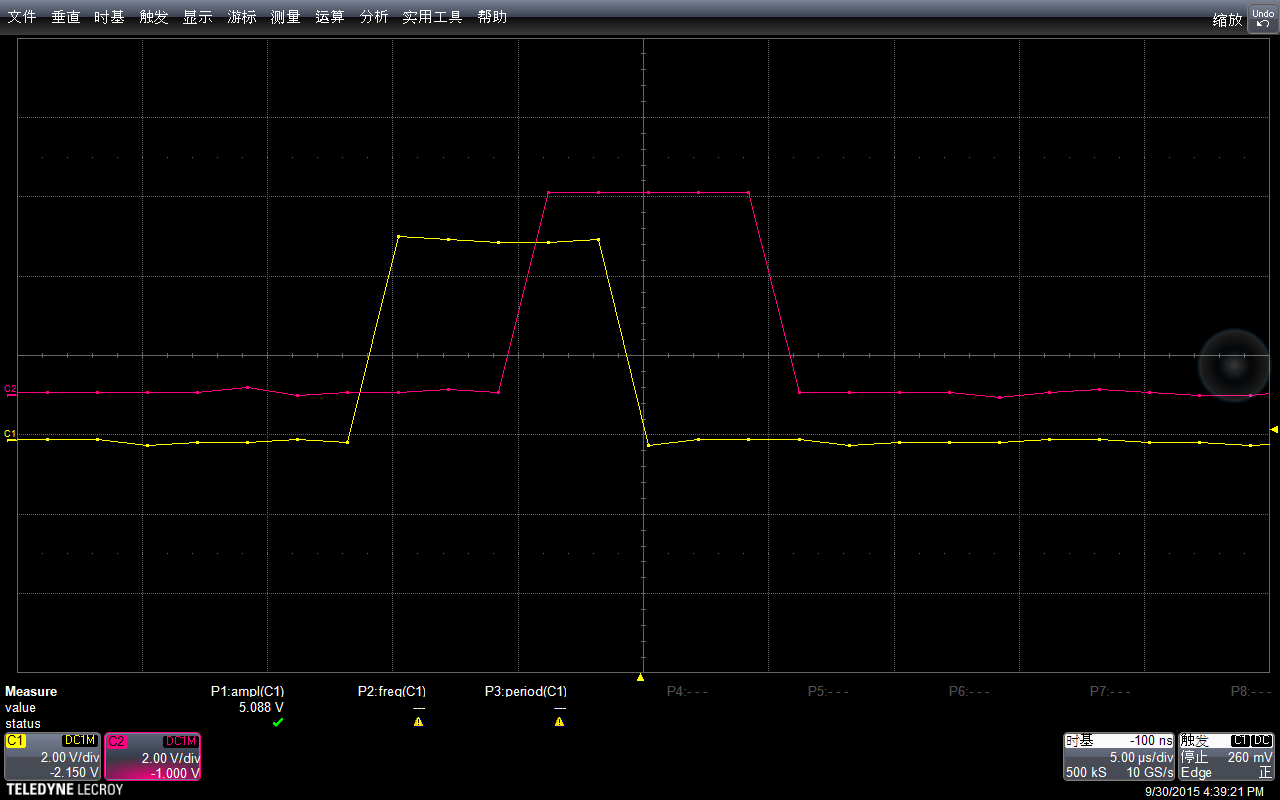
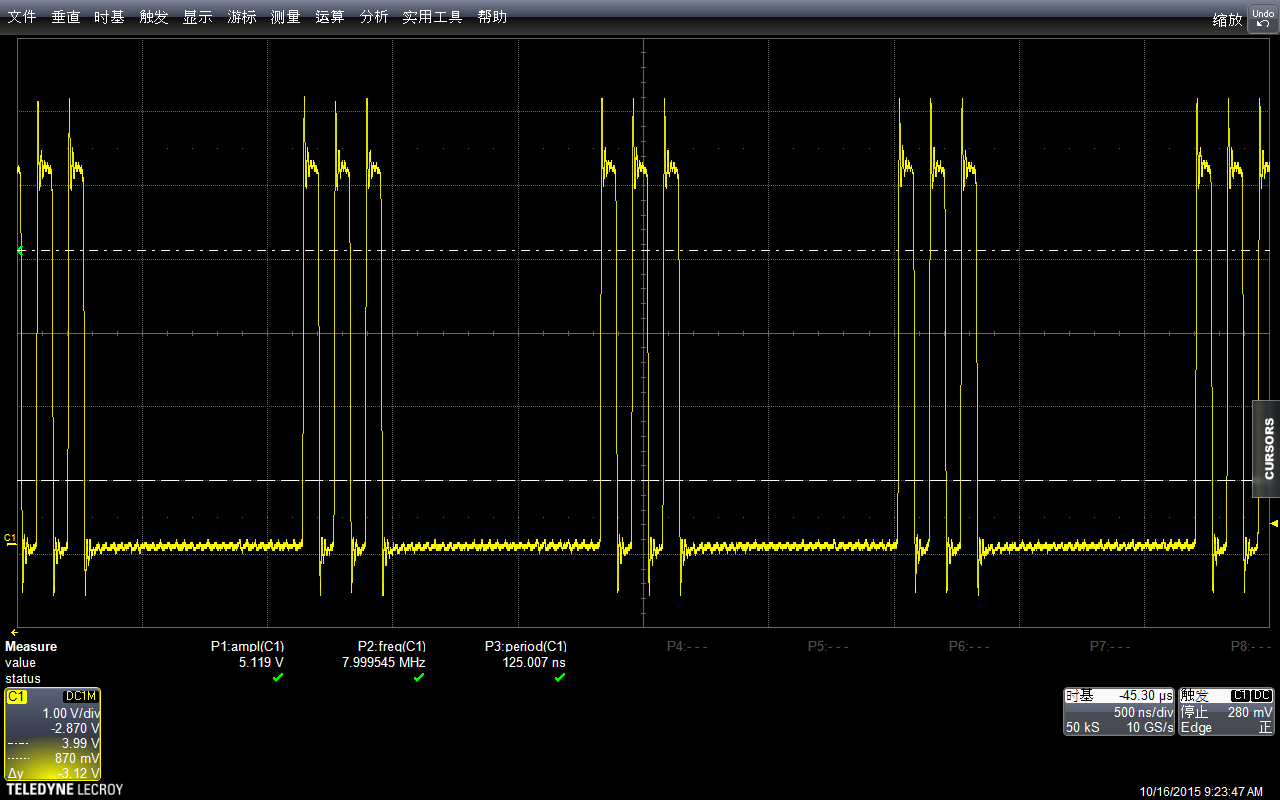
这个程序运行之后的波形如下
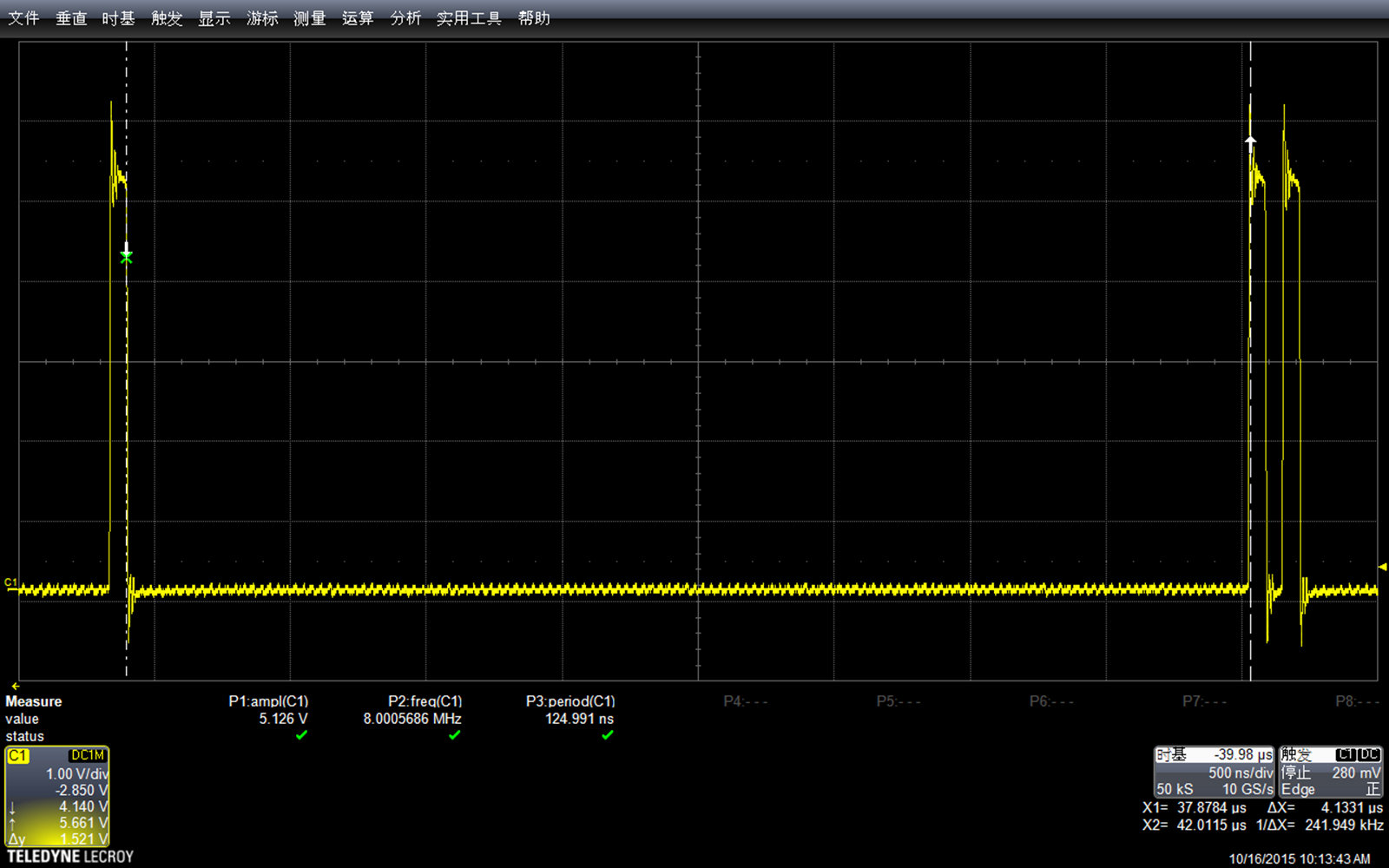
image002

可以看到中间的延时差不多有4.1331us(我用游标对齐,右下角显示x=4.1331). 让然这个值中还包括了一个拉GPIO的指令周期,大约会有 62.1ns的影响。此外,如果要求特别精确,在使用时还要考虑周期性中断的影响。这里就不说了…….

下面我们继续实验,尝试找到循环次数和实际delay时间的关系(因为涉及到编译器优化, long int的计算和判断,直接尝试计算机器周期不可行)。
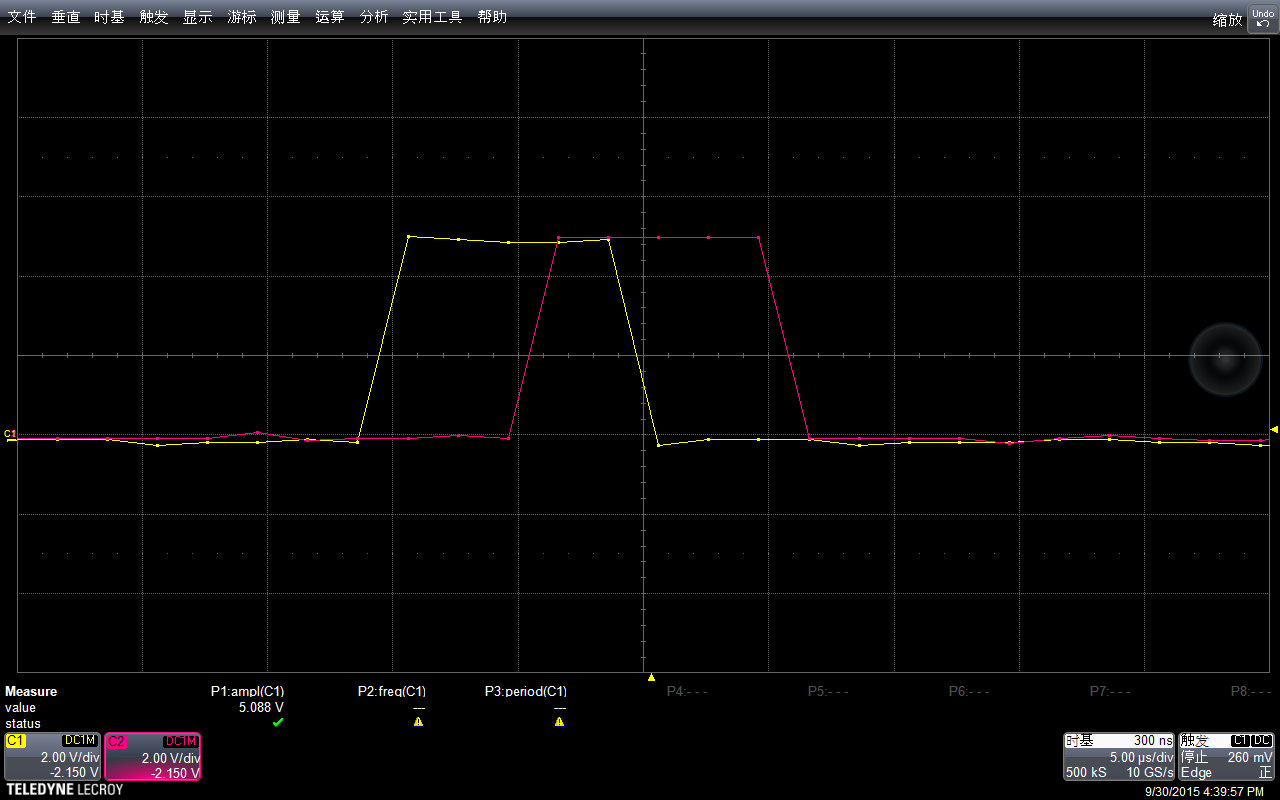
首先尝试zdelay<8,测量结果是3.7013us image004
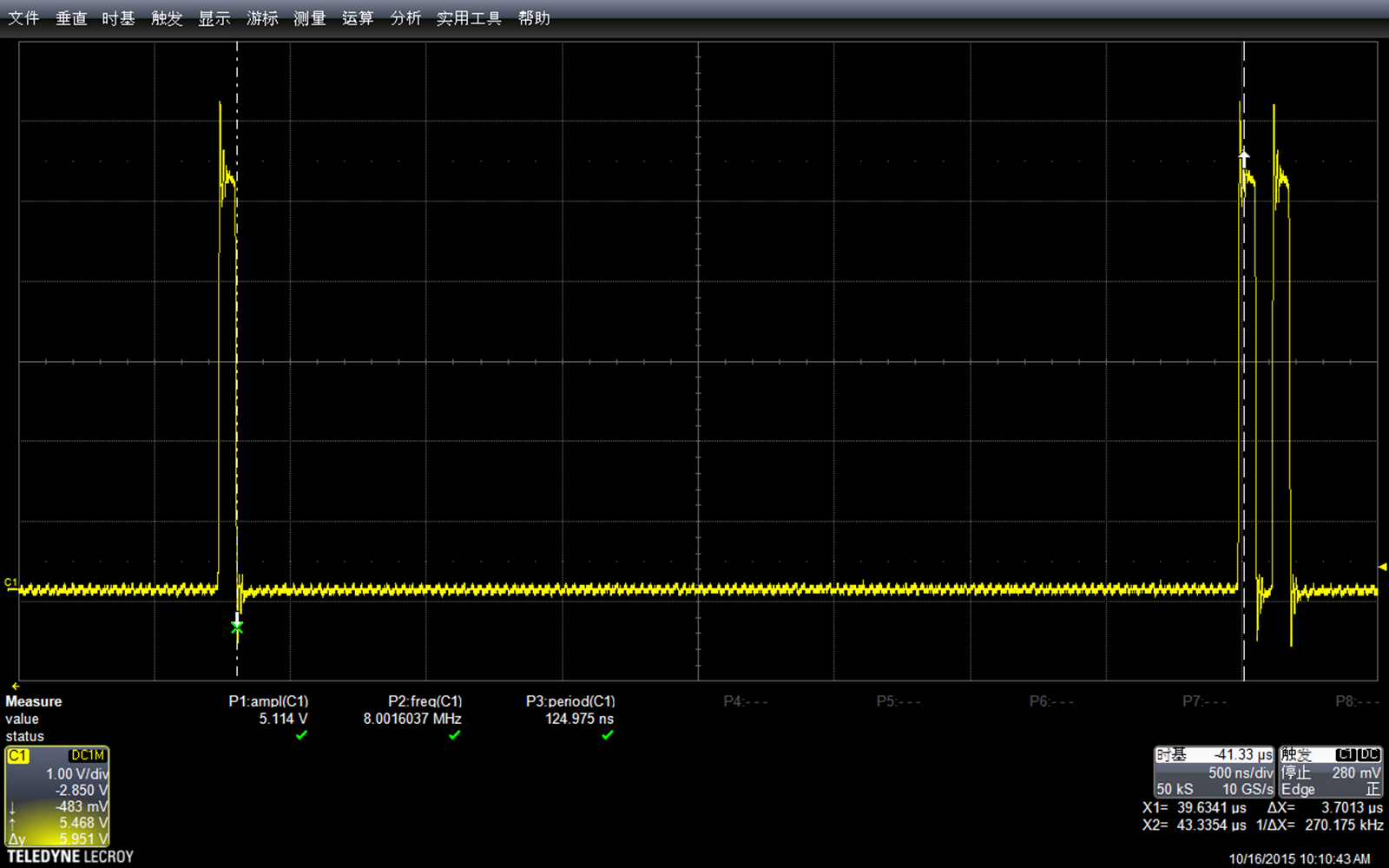
根据上述值结合循环简单猜测一下,对于这个循环体,固定部分耗时0.2469us (比如给变量赋初始值),循环部分每次耗时0.4318us
就是 T= 0.2469 + n *0.4318
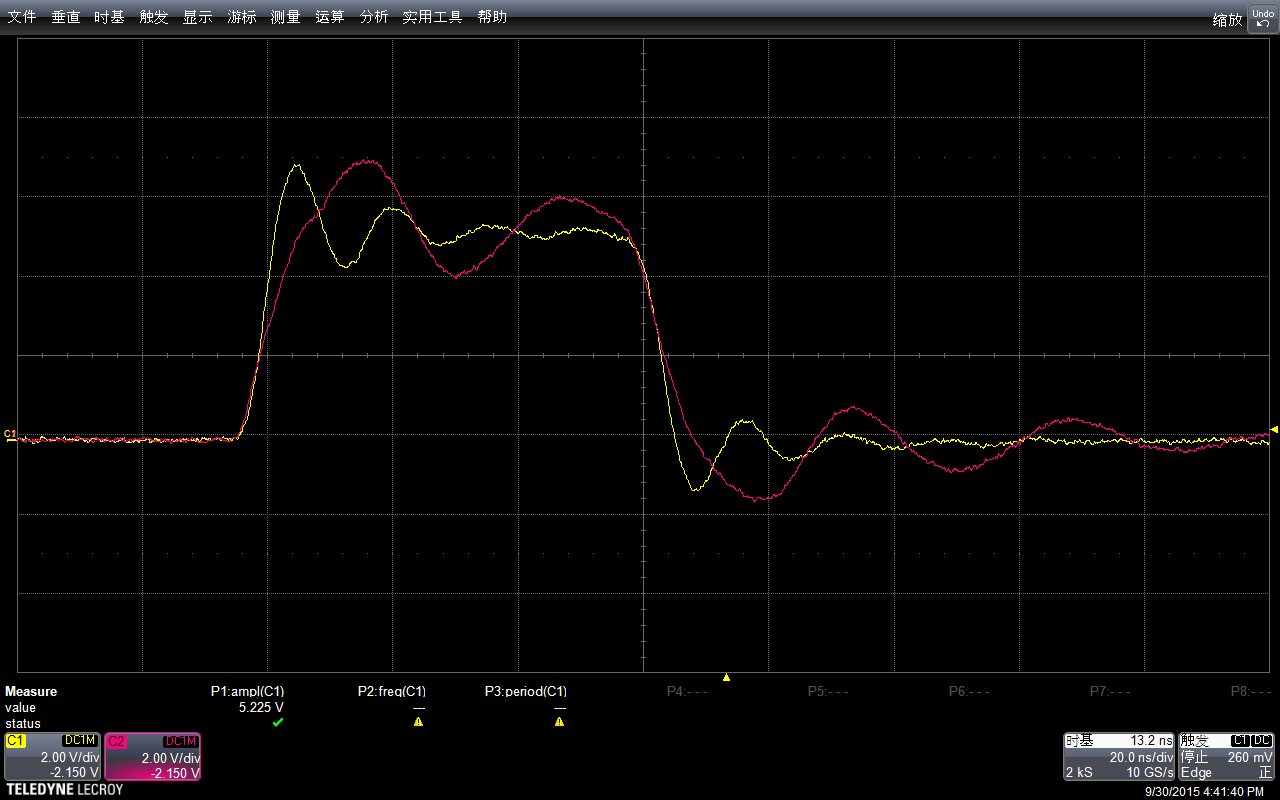
根据这个计算循环zdelay<5应该是 2.4059us测量结果是2.3722us 加入我们打算delay 100us 根据上述公式应该循环 231次 代码:

const int PinA =  13;      
void setup() {
  pinMode(PinA, OUTPUT);
  digitalWrite(PinA,LOW);
}

void loop() {
  PORTB = B100000; //digitalWrite(PinA,HIGH); 
  PORTB = B000000; //digitalWrite(PinA,LOW);  
  
  for (long zdelay=0;zdelay<231; zdelay++) {
    __asm__("nop\n\t");
  }

  PORTB = B100000; //digitalWrite(PinA,HIGH);
  PORTB = B000000; //digitalWrite(PinA,LOW);
  PORTB = B100000; //digitalWrite(PinA,HIGH);  
  PORTB = B000000;  //digitalWrite(PinA,LOW);  
}


实际测试结果符合理论…….
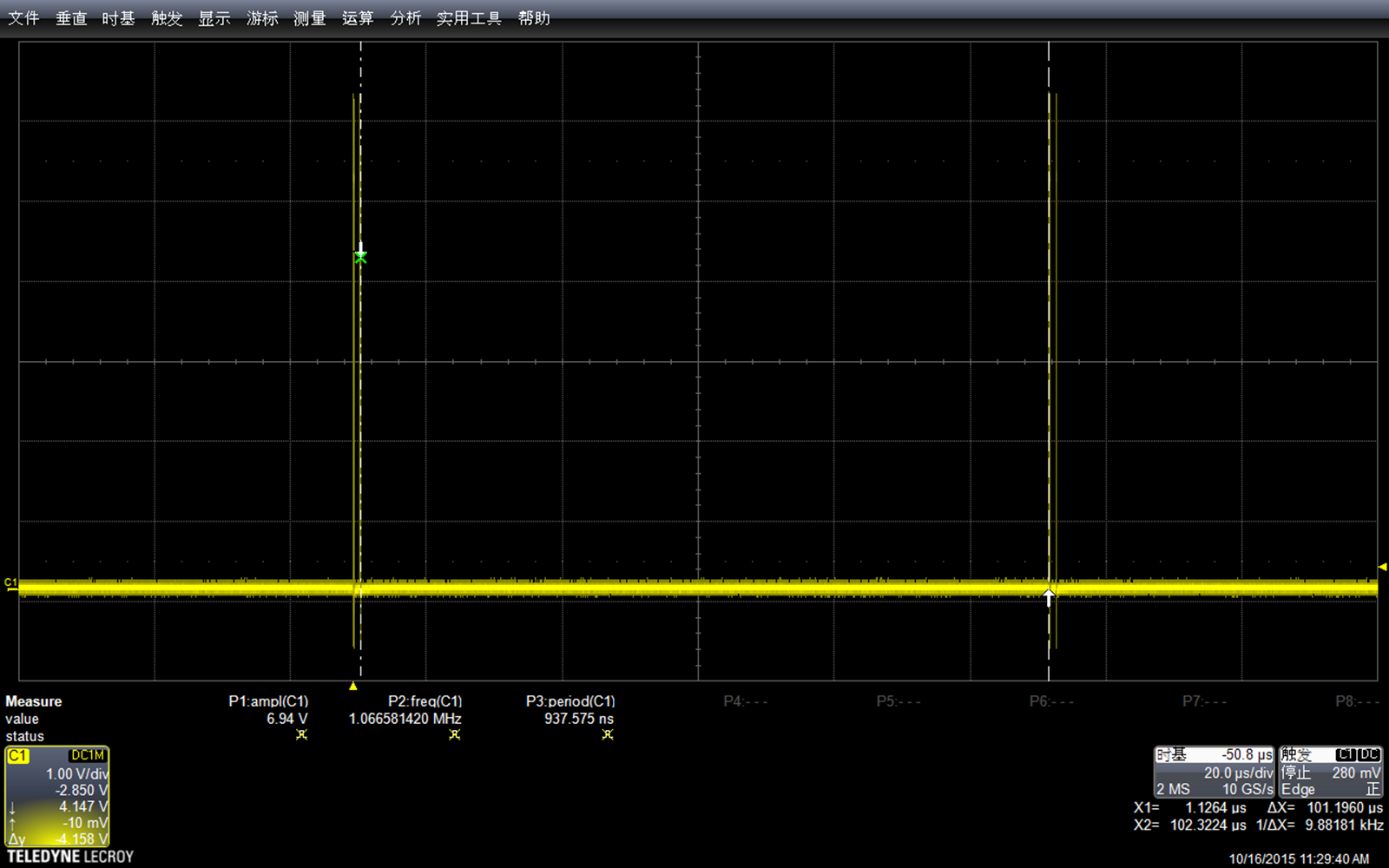
image006

最后,“极客工坊”的 sanyouhi 朋友指出,精确延时可以用写好的库来直接完成【参考1】

#define F_CPU 16000000
#include <util/delay.h>

void setup()
{
  DDRB = 0X20;
}

void loop()
{
PORTB = 0X20;
_delay_us(0.4);
PORTB = 0;
}


对应的头文件在 \arduino-1.6.3\hardware\tools\avr\avr\include\util\delay.h 有机会的时候再研究一下。

后记,比较有意思,如果我把代码写为下面的形式

const int PinA =  13;      
void setup() {
  pinMode(PinA, OUTPUT);
  digitalWrite(PinA,LOW);
}

void loop() {
  PORTB = B100000; //digitalWrite(PinA,HIGH); 
  for (long zdelay=0;zdelay<17; zdelay++) {
  }
  PORTB = B000000; //digitalWrite(PinA,LOW);  
  PORTB = B100000; //digitalWrite(PinA,HIGH);
  PORTB = B000000; //digitalWrite(PinA,LOW);
  PORTB = B100000; //digitalWrite(PinA,HIGH);  
  PORTB = B000000;  //digitalWrite(PinA,LOW);  
}


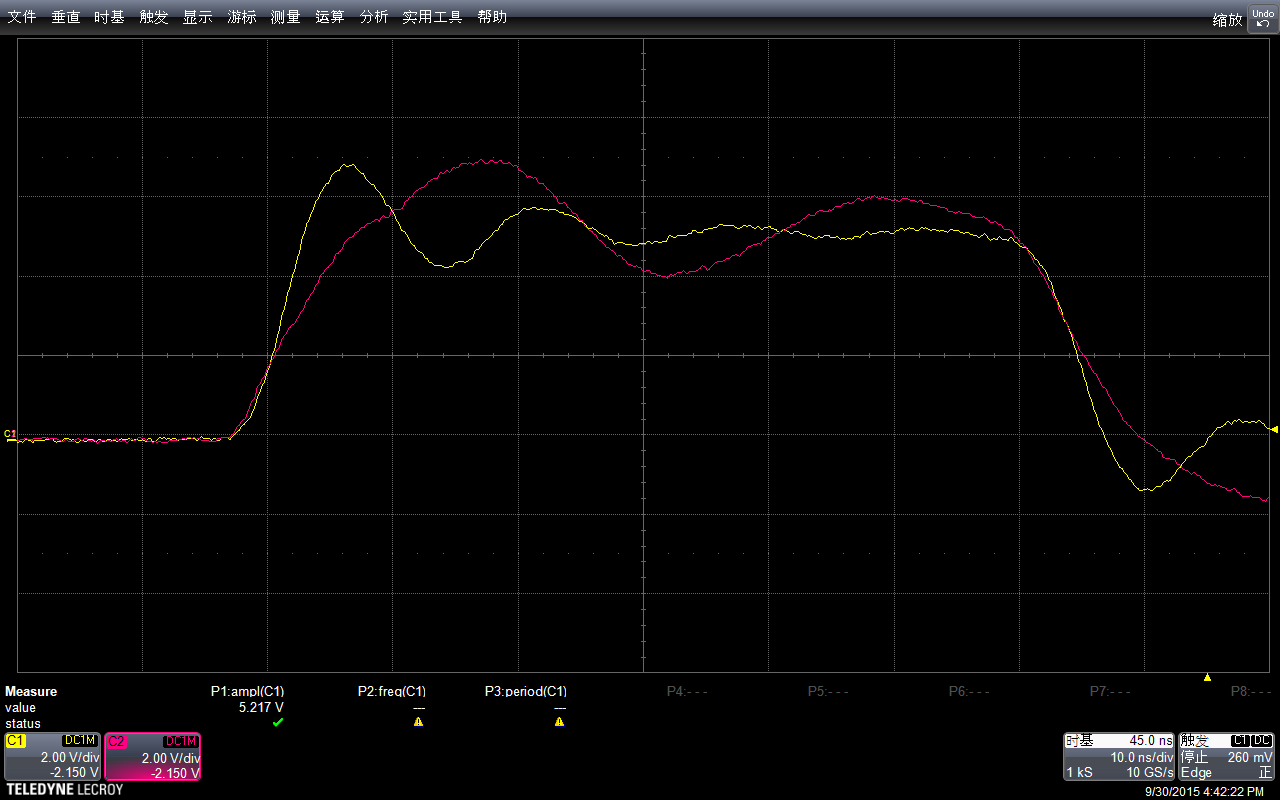
中间delay 的周期和不写 for 循环是相同的,猜测原因是编译器的自动优化,当编译器发现空循环时会自动移除循环代码。

参考:

1.http://www.geek-workshop.com/thread-24982-1-1.html
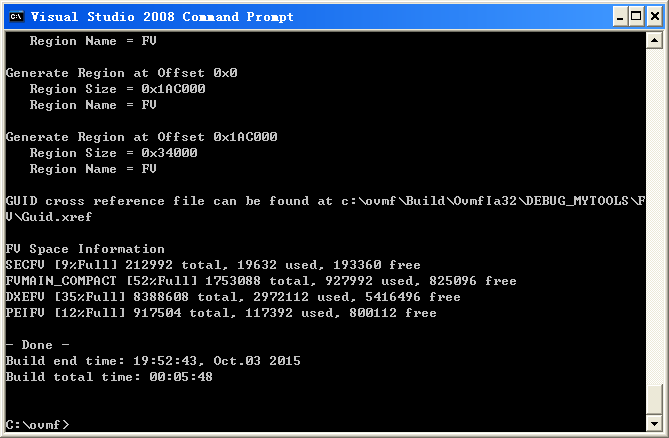
Step to UEFI (68) —– 编译一个能在 QEMU 上跑的BIOS

最近在看 《UEFI 原理与编程》,上面提到一款虚拟机可以运行指定的BIOS,那就是 QEMU (之前我也研究过如何替换 VirtualBox 的BIOS,结果非常沮丧,他不支持独立的 BIOS ,这意味即便是要在ASL中修改一些代码也要花费几个小时重新编译整个VirtualBox)。
书中对于如何在QEMU中跑起来没有详述,我花了一点时间搞定了,下面介绍一下方法:

第1步:下载最主要的软件

1.1 你需要下载 QEMU 这个虚拟机,下载的地址是

http://qemu.weilnetz.de/

我下载的版本是 qemu-w32-setup-20150925.exe

1.2 还要下载一套能够编译出供虚拟机使用的BIOS,这套代码的名字是 OVMF (刚开始我以为普通的EDK2代码即可,研究一段才发现理解错误)

下载的地址是

http://sourceforge.net/p/tianocore/edk2/ci/master/tarball?path=/OvmfPkg

第2步,编译 (大环境来说就是我一直用来编译使用 UDK2014 的环境)

2.1 解压 1.1 的代码 (我解压在名为 “OVMF” 的文件夹中)

2.2 运行 edk2setup.bat (此外还有一个 edksetup.bat ,我不清楚有什么差别)

会提示无法找到关于 python 的设置,我索性在 edk2setup.bat 开始处加入

set PYTHONHOME=C:\Python27 (当然,你需要先安装一套 python2.7 才行)

直接在批处理中添加语句,对整个编译环境没有影响

2.3 编译命令

build -a IA32 -p OvmfPkg\OvmfPkgIa32.dsc

遇到的第一个错误是无法找到 nasm ,我大概看了一下,这套代码的编译除了vc的ml还用到了 nasm 来处理汇编语言。

在 http://www.nasm.us/ 下载,我使用的版本是 nasm-2.11.08-win32。其中有用的只是 nasm.exe 我把它直接放在

C:\ovmf\BaseTools\Bin\Win32 目录下面,这个位置在编译过程中会加入到 path 中,所以一定能访问到。

遇到的第二个错误是无法找到 \asl\iasl.exe

在 https://acpica.org/downloads 可以下载到, 将 iasl.exe 放在 c:\asl\ 下面即可。

按照上述方法设置之后,即可正常编译

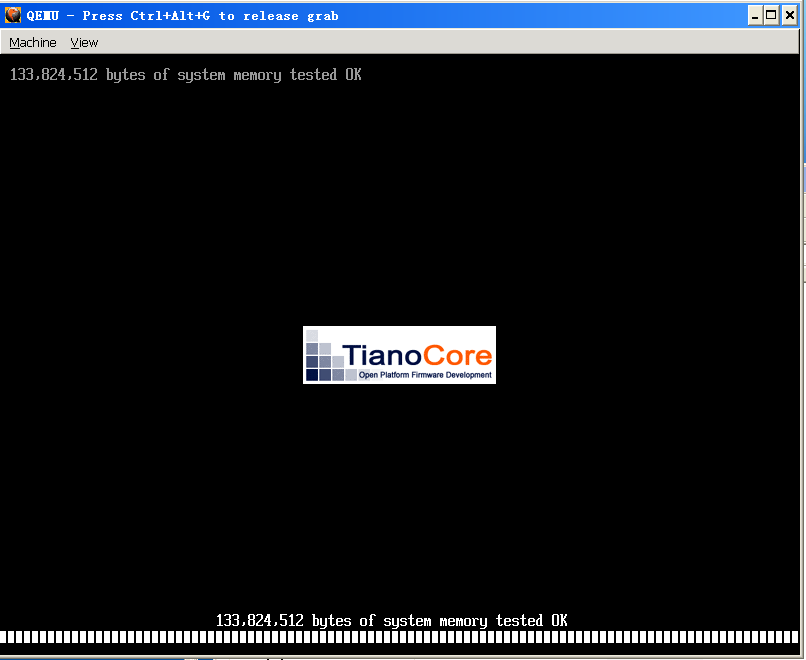
ovmf

2.4 运行方法

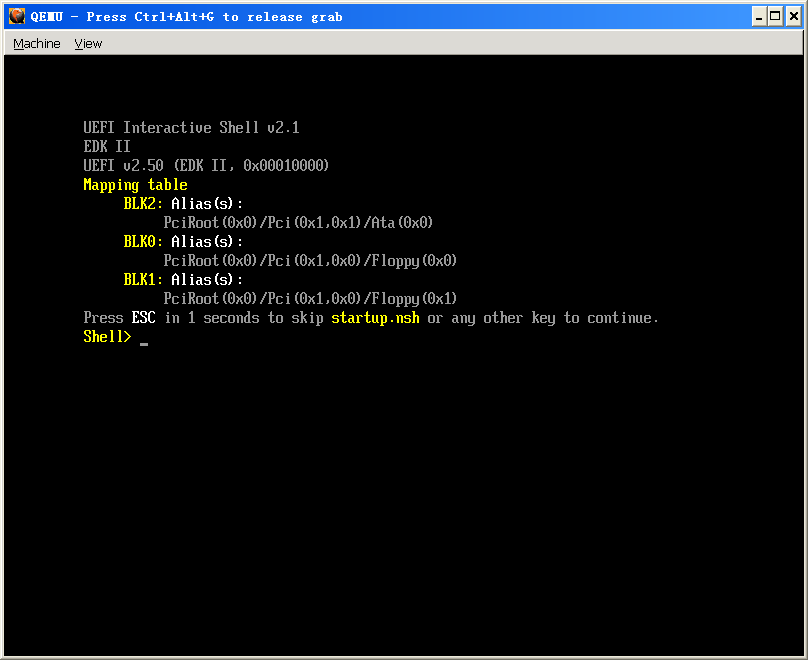
在 build 下面找到 ovmf.fd ,拷贝到 qemu 的安装目录下

命令行中运行

qemu-system-x86_64.exe -bios “OVMF.fd”

ovmf2

ovmf3

工作的视频

http://www.tudou.com/programs/view/acRlyVBYLz8/?resourceId=414535982_06_02_99

上面提到的工具,我放在Baidu网盘上,可以从这里下载 http://pan.baidu.com/s/1sjsZhr3 密码:uav4

如果你在具体操作中遇到任何问题可以直接给我留言,我会长期维护本文。

用示波器“看” arduino (1)

实验设备是一块 Arduino Uno 16M (是那种没有品牌的兼容版),示波器是 Teledyne Lecory Wave Runner 606Zi 600Mhz 20GS/s。

第一个实验:只使用DigitalWrite 能制造出来的最大频率是多少?

首先试试最通用的 digitalWrite 的方法不断在高低之间反转

const int PinA =  13;      

void setup() {
  pinMode(PinA, OUTPUT);
  digitalWrite(PinA,LOW);
}

void loop() {
  digitalWrite(PinA,HIGH);
  digitalWrite(PinA,LOW);
  digitalWrite(PinA,HIGH);
  digitalWrite(PinA,LOW);
  digitalWrite(PinA,HIGH);  
  digitalWrite(PinA,LOW);  
  delay(500);
}


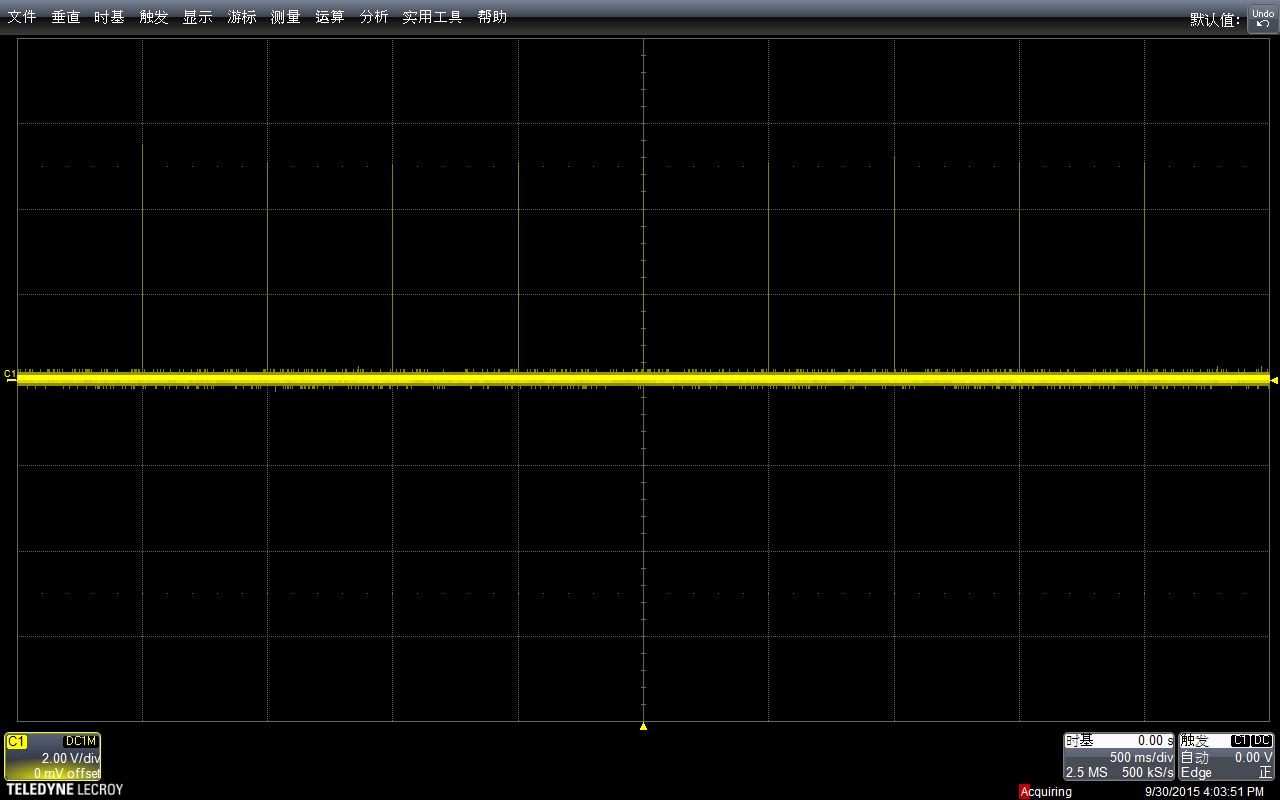
使用示波器抓图如下(下面的所有介绍都是具体解说在上,抓取波形在下):
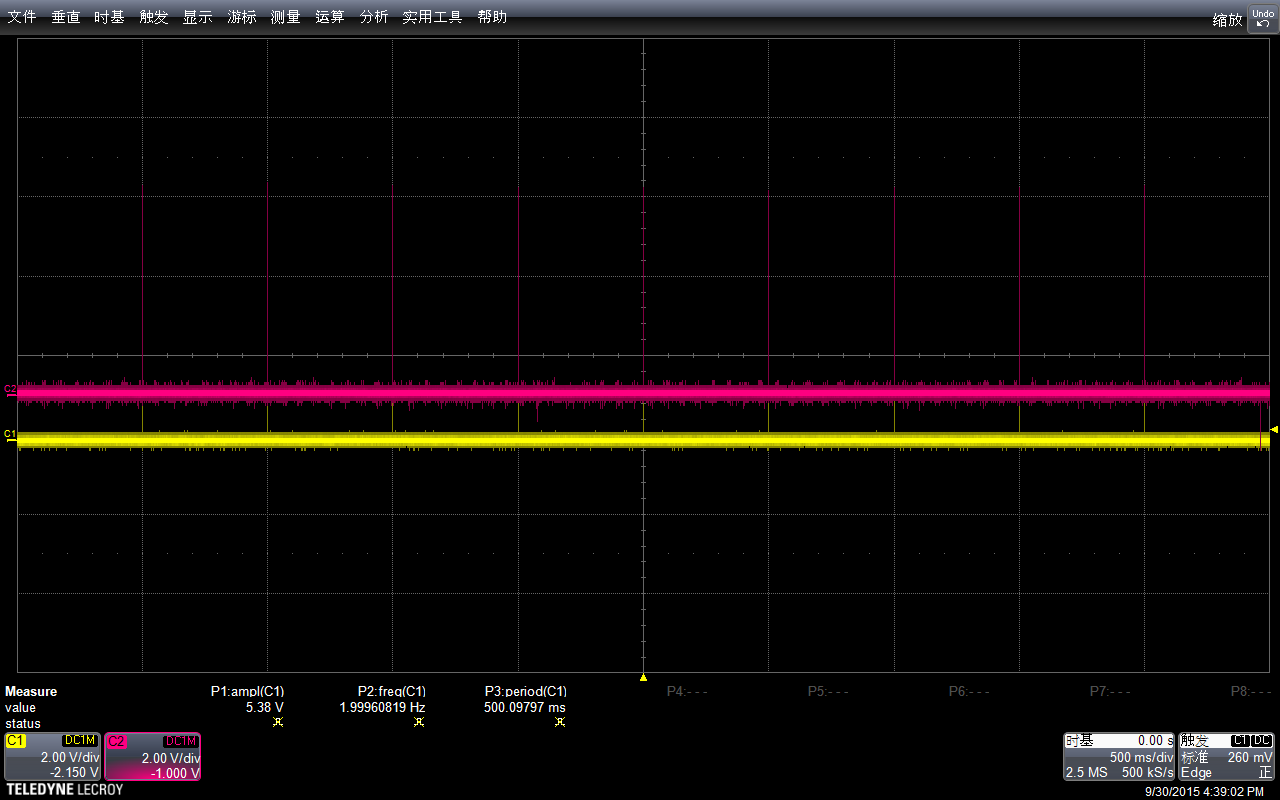
我们设置的Delay 是500ms, 然后示波器的水平方向每一格也是500ms,垂直方向是电压,当前选择每格2V,因此看起来差不多是5v左右,符合预期。

image001

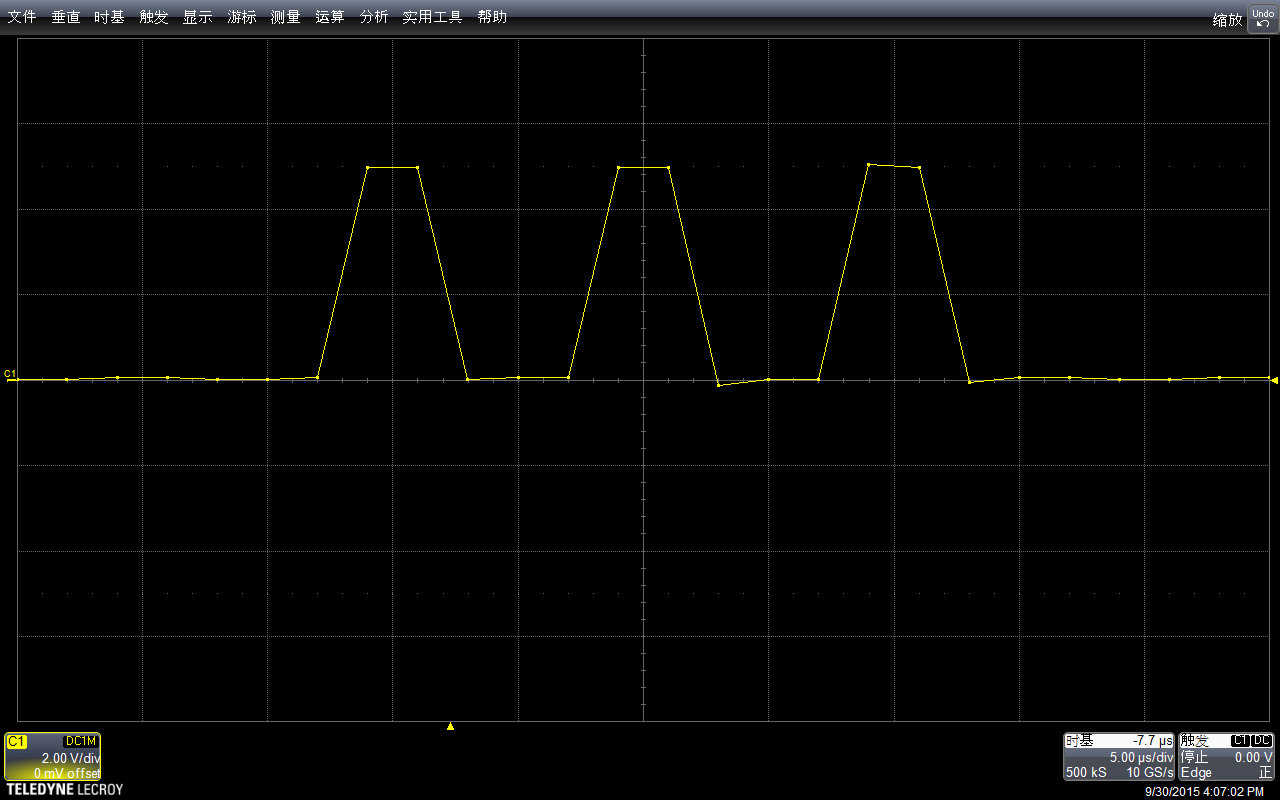
我选择了了Stop功能,放大波形进行查看。可以看到,最上面波形中黄色竖线实际上是一组波形,就是对应我们的拉高拉低。

image003

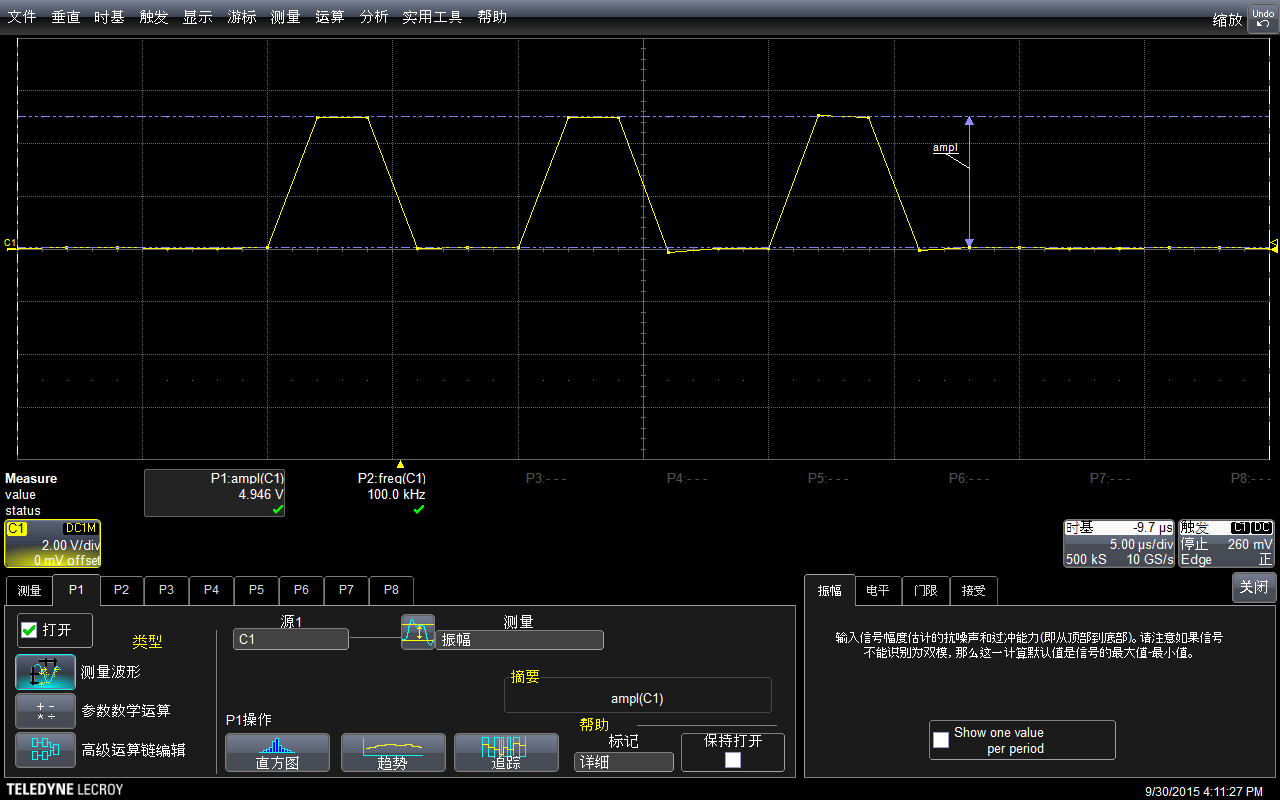
示波器有测量功能,直接调用该功能进行测试:可以看到幅度是4.946V,示波器还标记出来具体的测试方法,这在测量一些不是那么“规整”的波形时非常有用。

image005

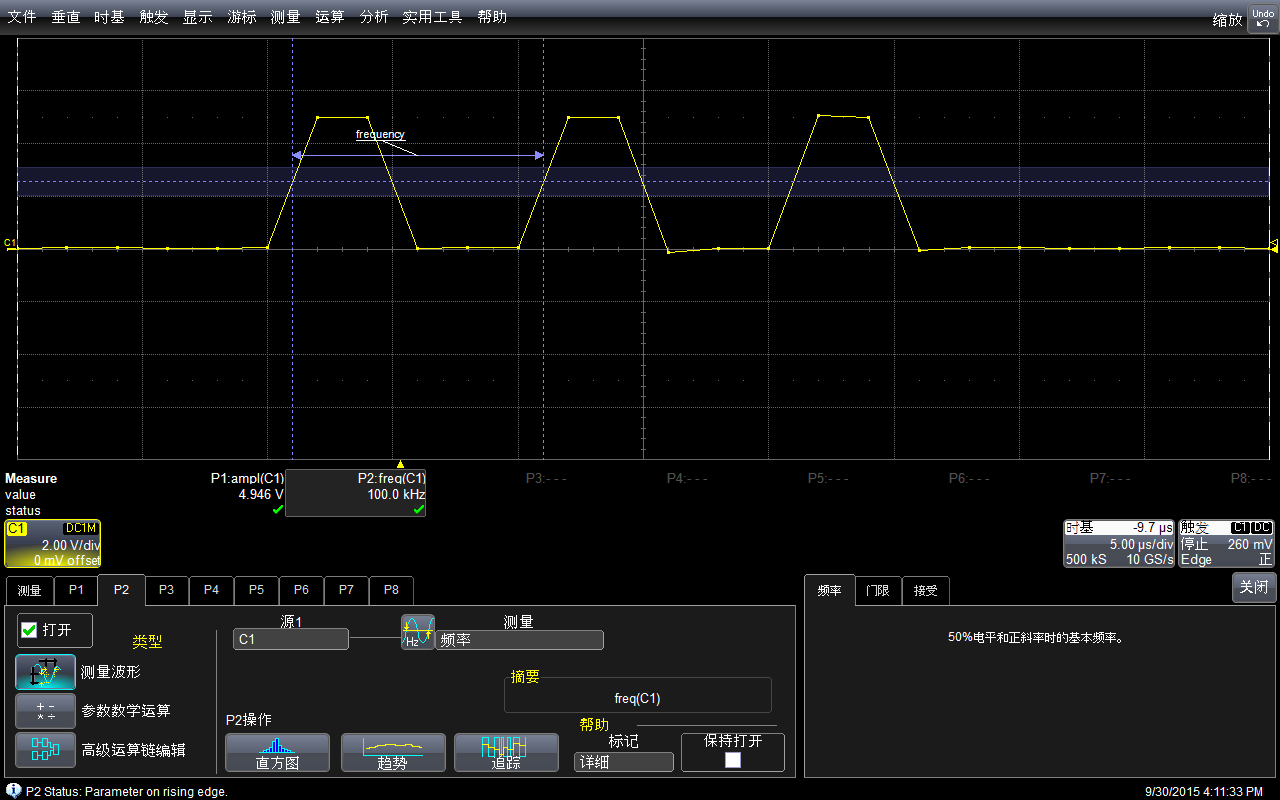
再用示波器自动测量一下频率:是100kHz。

image007

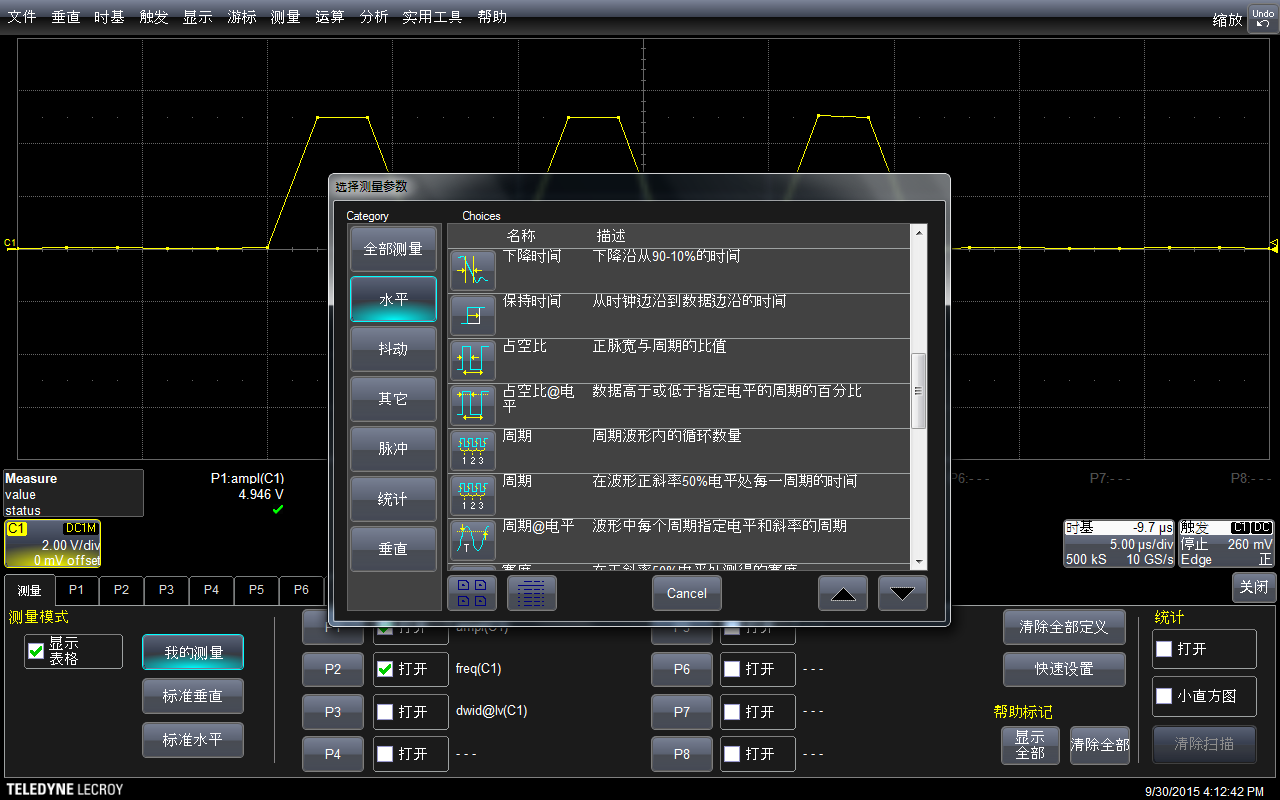
可以在菜单中选择测试的具体方法(比如,测试频率通用的方法是波形上升沿50%的位置)

image009

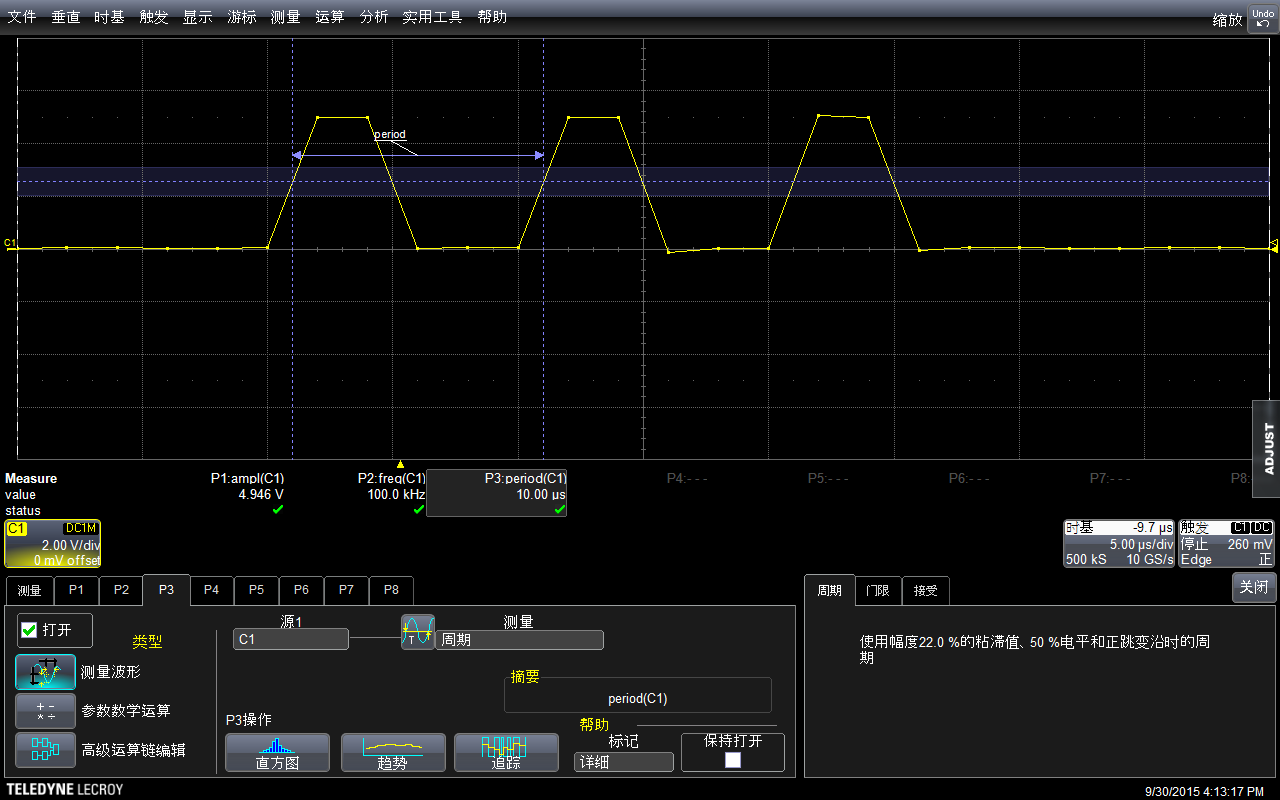
再测量周期(其实给出来了频率,周期是可以直接换算出来的)

image011

结论:如果我们用 DigitalWrite拼命上下拉,最高是可以输出100Khz频率的。

之后,我们再试试使用PortB赋值直接拉出来的频率是多少?关于 PortB 指令可以在【参考1】看到。

const int PinA =  13;      
void setup() {
  pinMode(PinA, OUTPUT);
  digitalWrite(PinA,LOW);
}

void loop() {
  PORTB = B100000; //digitalWrite(PinA,HIGH); 
  PORTB = B000000; //digitalWrite(PinA,LOW);  
  PORTB = B100000; //digitalWrite(PinA,HIGH);
  PORTB = B000000; //digitalWrite(PinA,LOW);
  PORTB = B100000; //digitalWrite(PinA,HIGH);  
  PORTB = B000000;  //digitalWrite(PinA,LOW);  
  
  delay(500);
}


看起来下面波形感觉畸变比较严重(这里:解释一下,前面图看起来平滑的原因是采样时间导致的。比如,我的示波器单位时间可以采样500个点,如果我采样1s,放大之后,在1ms范围内只有5个点。如果我直接采样1ms,那么会有500个点来描绘波形,看起来自然“平滑”得多)

image013

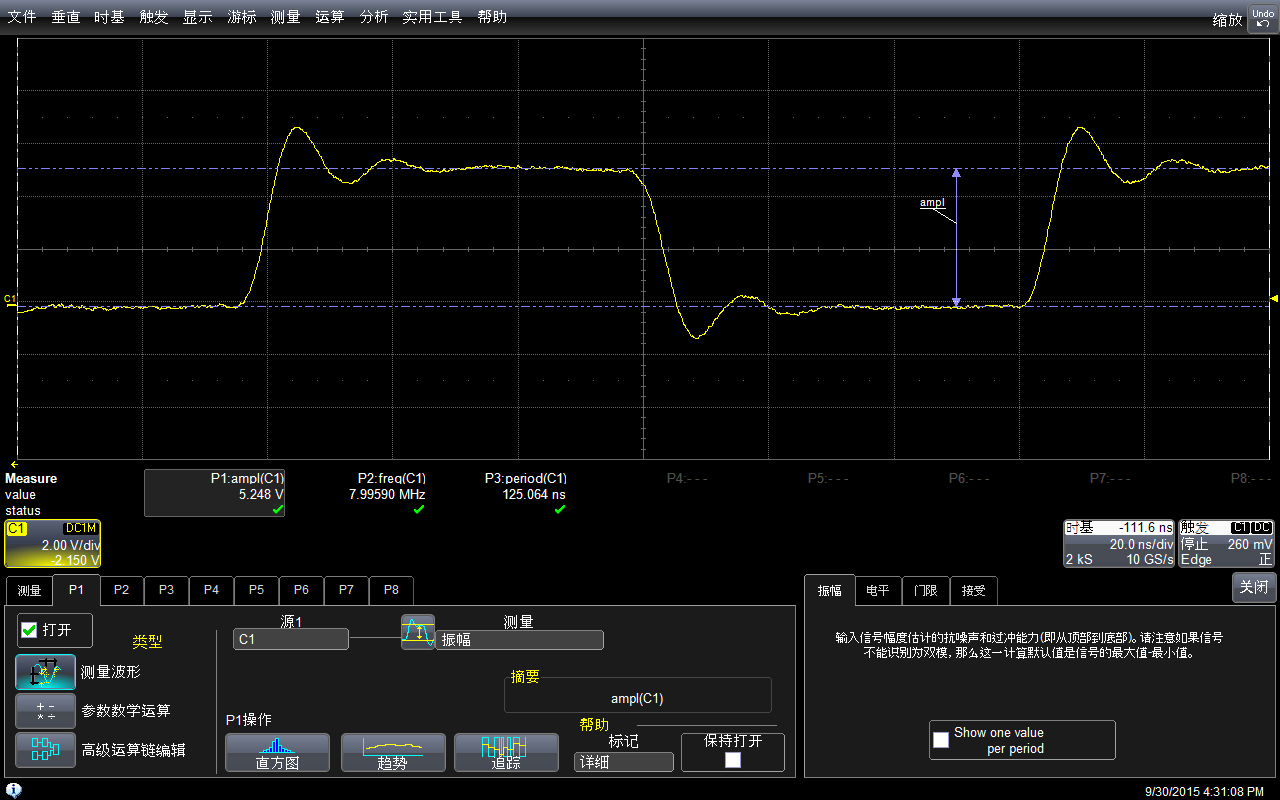
测试幅度,会达到5.248v

image015

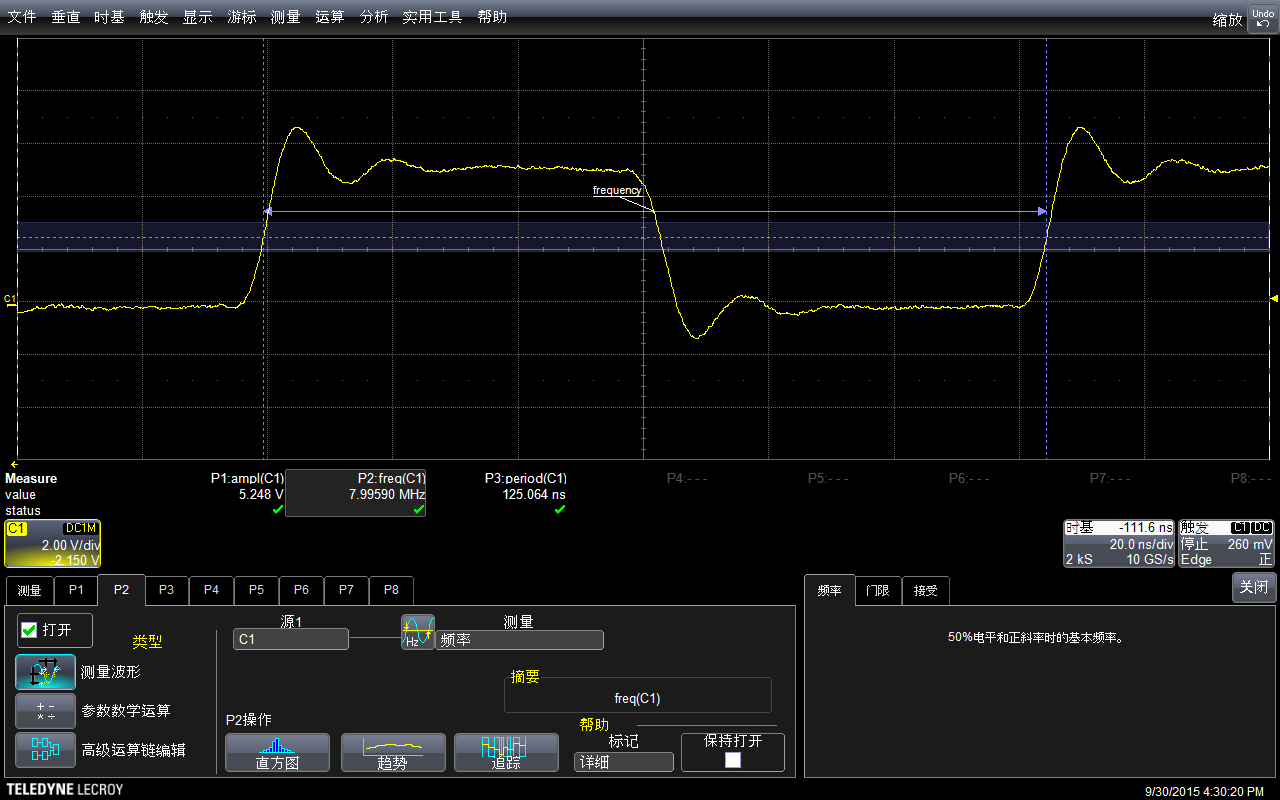
同样,使用自带功能测试频率:惊人的 7.99590Mhz

image017

因为一个周期里面实际上是有两条指令的(拉上拉下),已经非常接近主芯片的16Mhz了。

根据上面的结果引申的问题:如何同时拉高两个Port?

首先我们尝试一下 DigitalWrite的方法

const int PinA =  13;      
const int PinB =  8;   
void setup() {
  pinMode(PinA, OUTPUT);
  digitalWrite(PinA,LOW);
  
  pinMode(PinB, OUTPUT);
  digitalWrite(PinB,LOW);  
}

void loop() {
  digitalWrite(PinA,HIGH);
  digitalWrite(PinB,HIGH);
  digitalWrite(PinA,LOW);
  digitalWrite(PinB,LOW);
  
  delay(500);
}


下图可以看到,注意我设置两个信号起始电压不同,为了观测方便,所以会一个上一个下
image019

放大之后查看

image021

为了方便观看,我设置他们电压起点相同,可以看出他们差不多有1个水平格子的差别(5us)。对于这个差异可以在【参考2】初步了解一下。

image023

再尝试PortB 直接赋值的方法

const int PinA =  13;      
const int PinB =  8;   
void setup() {
  pinMode(PinA, OUTPUT);
  digitalWrite(PinA,LOW);
  
  pinMode(PinB, OUTPUT);
  digitalWrite(PinB,LOW);  
}

void loop() {
  
  PORTB = B100001; //digitalWrite(PinA,HIGH); digitalWrite(PinB,HIGH);  
  PORTB = B000000; //digitalWrite(PinA,LOW); digitalWrite(PinB,LOW); 

  delay(500);
}


结果上可以看作是同时发出的
image025

再放大查看,纠缠在一起,,波形上的细微差别可能是外围电路导致的。

image027

补记:为了比对,额外实验 DFrobot 的 RomeoBLEV1.0 的板子为了看得清楚,修改程序如下,去掉了 delay

const int PinA =  13;      
void setup() {
  pinMode(PinA, OUTPUT);
  digitalWrite(PinA,LOW);
}

void loop() {
  PORTB = B100000; //digitalWrite(PinA,HIGH); 
  PORTB = B000000; //digitalWrite(PinA,LOW);  
  PORTB = B100000; //digitalWrite(PinA,HIGH);
  PORTB = B000000; //digitalWrite(PinA,LOW);
  PORTB = B100000; //digitalWrite(PinA,HIGH);  
  PORTB = B000000;  //digitalWrite(PinA,LOW);  
}


先看大范围的,每组3次上升,每组之间的间隔是void loop() { } 中的代码导致的

image029

振幅上和之前的板子差不多 5.13v左右,实际多测试几次也会出现 5.2v。看起来由品牌的板子和无品牌的板子在这方便没有差别。

参考:

1.关于Port x的说明https://www.arduino.cc/en/Reference/PortManipulation

PORTD maps to Arduino digital pins 0 to 7

DDRD – The Port D Data Direction Register – read/write
PORTD – The Port D Data Register – read/write
PIND – The Port D Input Pins Register – read only
PORTB maps to Arduino digital pins 8 to 13 The two high bits (6 & 7) map to the crystal pins and are not usable

DDRB – The Port B Data Direction Register – read/write
PORTB – The Port B Data Register – read/write
PINB – The Port B Input Pins Register – read only
PORTC maps to Arduino analog pins 0 to 5. Pins 6 & 7 are only accessible on the Arduino Mini

DDRC – The Port C Data Direction Register – read/write
PORTC – The Port C Data Register – read/write
PINC – The Port C Input Pins Register – read only

同样,这篇文章中提到了如何同时拉Pin 的方法

Sometimes you might need to set multiple output pins at exactly the same time. Calling digitalWrite(10,HIGH); followed by digitalWrite(11,HIGH); will cause pin 10 to go HIGH several microseconds before pin 11, which may confuse certain time-sensitive external digital circuits you have hooked up. Alternatively, you could set both pins high at exactly the same moment in time using PORTB |= B1100;

2. Arduino 代码机制 http://blog.csdn.net/pinbodexiaozhu/article/details/42641273

Step to UEFI (67) —– zLib (上)

zlib 是一款开源的压缩解压库,在《UEFI原理与编程》第8章提到了他。我去书上提到的网站下载到了修改后的 zlib.inf 文件,然后尝试在AppPkg中重新编译之。

首先根据 zlib.inf 中[Sources]节给出的文件名提取出来需要用的文件。

[Sources]
#uefientry.c
adler32.c
crc32.c
deflate.c
infback.c
inffast.c
inflate.c
inftrees.c
trees.c
zutil.c
compress.c
uncompr.c
gzclose.c
gzlib.c
gzread.c
gzwrite.c

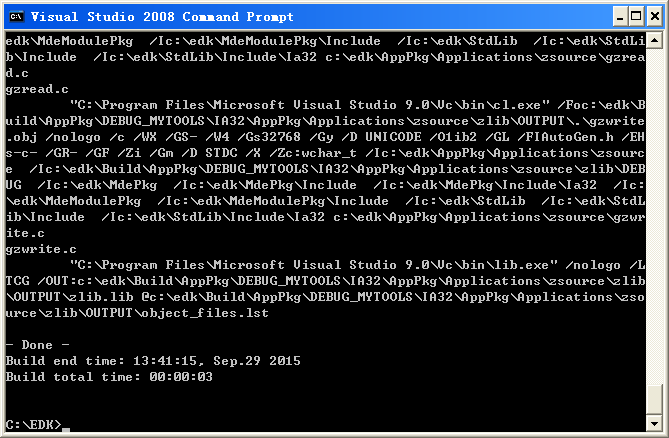
然后,把 zlib.inf 加入到 AppPkg.dsc 中。之后用 Build -a IA32 -p AppPkg\AppPkg.dsc 编译。编译过程中会出现很多错误,经过研究发现出现的都是一些 warning 而已,可以通过在文件头上加入编译开关来忽略掉。

#pragma warning(disable:4131)
#pragma warning(disable:4142)
#pragma warning(disable:4244)


* 很多 Warning 是因为老的语法格式导致的,所以不会对代码产生任何影响,比如下面这种,没有在函数名称中定义参数类型:

/* Open a gzip file either by name or file descriptor. */
local gzFile gz_open(path, fd, mode)
    const void *path;
    int fd;
    const char *mode;


此外,在 gzguts.h 中,需要删掉这一行。

#if defined(__TURBOC__) || defined(_MSC_VER) || defined(_WIN32)
  include <io.h>
#endif


完成上面的设置后,重新运行命令,可以正常编译:

zlibc

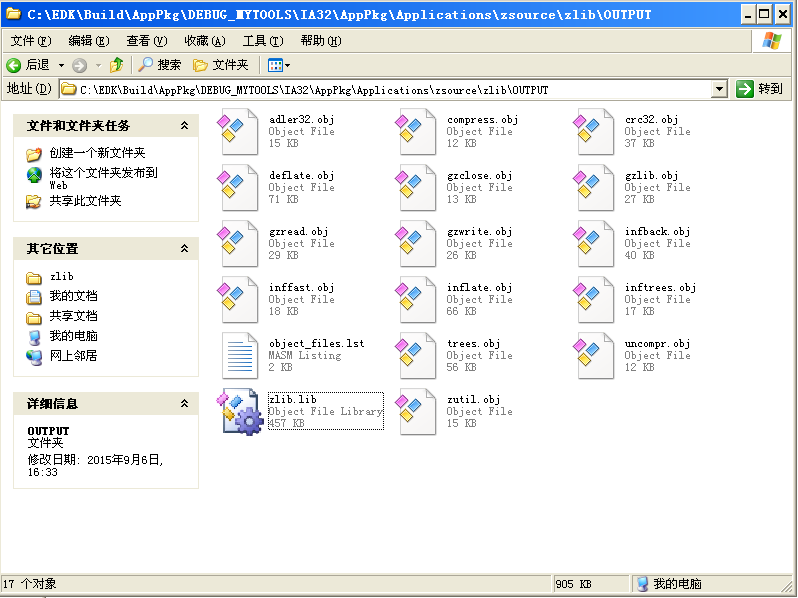
在 \Build\AppPkg\DEBUG_MYTOOLS\IA32\AppPkg\Applications\zsource\zlib\OUTPUT 下面看到 zlib.lib 文件

zlib

后续我们就可以在自己的程序中调用这个压缩库了。

本文修改后的 zlib zsource

修改之前的 zlib,版本是 1.2.8.0

zlib128

Step to UEFI (66) —– Decompress的使用

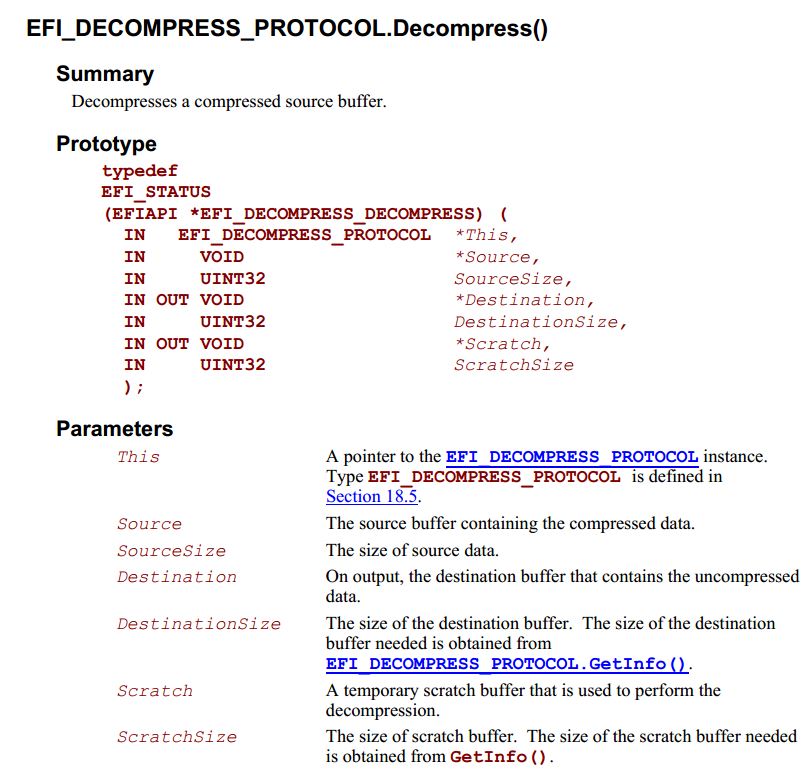
这里介绍一下解压缩 EFI_DECOMPRESS_PROTOCOL 的使用。

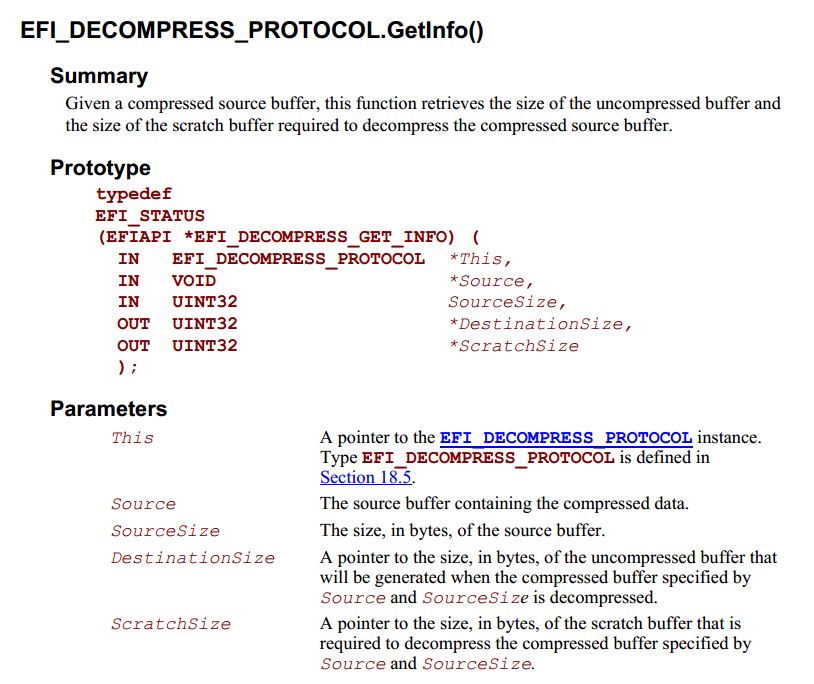
首先是 GetInfo 函数【参考1】。通过它我们能够获得压缩文件的一些基本信息,比如:解压后的大小,解压过程需要的临时内存空间的大小。

getinfo

之后就是具体的解压函数 Decompress 【参考2】

decompress

根据上面的信息,编写一个简单的测试程序,首先将压缩格式的文件读取到内存中,再使用 GetInfo 取得必要的信息,最后,根据必须要的信息创建内存 Buffer ,使用 Decompress 解压即可。

代码如下

#include  <Uefi.h>
#include  <Library/UefiLib.h>
#include  <Library/ShellCEntryLib.h>
#include <Protocol/Decompress.h>
#include <Library/BaseMemoryLib.h>
#include <Library/MemoryAllocationLib.h>
#include <Protocol/EfiShell.h>
#include <Library/ShellLib.h>

extern EFI_BOOT_SERVICES         *gBS;
extern EFI_SYSTEM_TABLE			 *gST;
extern EFI_RUNTIME_SERVICES 	 *gRT;

int
EFIAPI
main (
  IN int Argc,
  IN CHAR16 **Argv
  )
{
	EFI_DECOMPRESS_PROTOCOL       *Decompress;
    VOID                          *ImageBuffer=NULL;
	UINT32                        ImageLength=0;
    UINT32                        DestinationSize;
    UINT8                         *Scratch;
    UINT32                        ScratchSize;
    VOID                          *DecompressedImageBuffer=NULL;
    EFI_STATUS                    Status;
	EFI_FILE_HANDLE   			  FileHandle;
	EFI_FILE_INFO     			  *FileInfo = NULL;  
	UINTN  				    	  ReadSize;  
	EFI_HANDLE       			 *HandleBuffer=NULL;
	
    Status = gBS->LocateProtocol (&gEfiDecompressProtocolGuid,
									NULL, (VOID**)&Decompress);

    if (EFI_ERROR (Status)) {
		Print(L"Can't find Decompress Protocol! \n");	
    } else {
			//Open the file given by the parameter
			Status = ShellOpenFileByName(
							Argv[1], 
							(SHELL_FILE_HANDLE *)&FileHandle,
                            EFI_FILE_MODE_READ, 
							0);

			if(Status != RETURN_SUCCESS) {
				Print(L"OpenFile failed!\n");
				return EFI_SUCCESS;
			}//if(Status != RETURN_SUCCESS) {			

			//Get file size	  
			FileInfo = ShellGetFileInfo((SHELL_FILE_HANDLE)FileHandle);	

			//Allocate a memory buffer
			HandleBuffer = AllocateZeroPool((UINTN) FileInfo->FileSize);
			if (HandleBuffer == NULL) {
				return (SHELL_OUT_OF_RESOURCES);   }

			ReadSize=(UINTN) FileInfo-> FileSize;
  
			//Load the whole file to the buffer
			Status = ShellReadFile(FileHandle,&ReadSize,HandleBuffer);
  
			//Close the source file
			ShellCloseFile(&FileHandle);
			
            Status = Decompress->GetInfo (
                                  Decompress,
                                  HandleBuffer,
                                  ReadSize,
                                  &DestinationSize,
                                  &ScratchSize
                                 );
            if (!EFI_ERROR (Status)) {
			  Print(L"[GetInfo] Destination Size %d\n",DestinationSize);					 
			  Print(L"[GetInfo] Scratch Size %d\n",ScratchSize);	
			  
              DecompressedImageBuffer = AllocateZeroPool (DestinationSize);
              if (DecompressedImageBuffer != NULL) {
                Scratch = AllocateZeroPool (ScratchSize);
                if (Scratch != NULL) {
                  Status = Decompress->Decompress(
                                        Decompress,
                                        HandleBuffer,	//Source
                                        ReadSize,	    //Source Size
                                        DecompressedImageBuffer,//Destination
                                        DestinationSize,	//DestinationSize
                                        Scratch,
                                        ScratchSize
                                       );
                  if (!EFI_ERROR (Status)) {
                    ImageBuffer = DecompressedImageBuffer;
                    ImageLength = DestinationSize;
			
					//Create a new file
					Status = ShellOpenFileByName(L"decomp.bmp", 
                               (SHELL_FILE_HANDLE *)&FileHandle,
                               EFI_FILE_MODE_READ |
							   EFI_FILE_MODE_WRITE|
							   EFI_FILE_MODE_CREATE, 
							   0);  
					if(Status != RETURN_SUCCESS) {
						Print(L"CreatFile failed [%r]!\n",Status);
						return EFI_SUCCESS;
					}	
					
					Status = ShellWriteFile(FileHandle,
						&DestinationSize,
						ImageBuffer
						);
			
					//Close the source file
					ShellCloseFile(&FileHandle);
                  } //if (!EFI_ERROR (Status)) {
				  else
					{
						Print(L"Decompress error [%r] \n",Status);	
					}
                  FreePool (Scratch);
                } // if (Scratch != NULL) {
              } //if (ImageBuffer != NULL) {
            } //if (!EFI_ERROR (Status)) {
 			
			else	{
				Print(L"Read compressed file error!\n",ScratchSize);	
			}
			
          } //if (EFI_ERROR (Status)) {
  
  return EFI_SUCCESS;
}


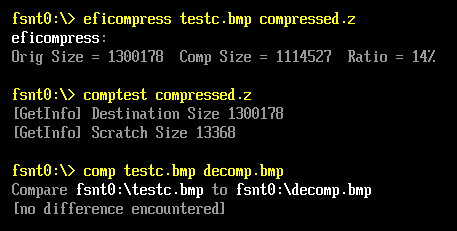
运行结果

comptest

完整程序下载

CompTest

特别注意:

1.本文测试使用的压缩文件是 UEFI 下面生成的,具体命令是

eficompress testc.bmp compressed.z

我尝试使用 BaseTools 里面的压缩工具,生成的文件格式会出现不兼容,无法正常解压的情况。

2.根据我自己的理解 Scratch Buffer 是解压过程中解压算法使用的内存区域,不同压缩文件对于这片区域的大小要求不同。

参考:

1. UEFI Spec 2.4 P883
2. UEFI Spec 2.4 P885
3. ShellPkg 中的 EfiDecompress 程序是非常好的参考例子。

VBS 获取网页并保存

编写一个简单的VBS文件,能够自动保存网页,并且根据当前时间起不同的文件名

 Set fso = CreateObject("Scripting.FileSystemObject")
 Set Outp = Wscript.Stdout
 On Error Resume Next
 Set File = WScript.CreateObject("Microsoft.XMLHTTP")
 File.Open "GET", "http://api.huobi.com/staticmarket/btc_kline_001_json.js", False
 File.setRequestHeader "User-Agent", "Mozilla/4.0 (compatible; MSIE 8.0; Windows NT 6.0; Trident/4.0; SLCC1; .NET CLR 2.0.50727; Media Center PC 5.0; .NET CLR 1.1.4322; .NET CLR 3.5.30729; .NET CLR 3.0.30618; .NET4.0C; .NET4.0E; BCD2000; BCD2000)"
 File.Send
 If err.number <> 0 then 
  Outp.writeline "" 
  Outp.writeline "Error getting file" 
  Outp.writeline "==================" 
  Outp.writeline "" 
  Outp.writeline "Error " & err.number & "(0x" & hex(err.number) & ") " & err.description 
  Outp.writeline "Source " & err.source 
  Outp.writeline "" 
  Outp.writeline "HTTP Error " & File.Status & " " & File.StatusText
  Outp.writeline  File.getAllResponseHeaders
  Outp.writeline Arg(1)
 End If

On Error Goto 0

 Set BS = CreateObject("ADODB.Stream")
 BS.type = 1
 BS.open
 BS.Write File.ResponseBody
 BS.SaveToFile "c:\uefi\"&year(Now)&Month(Now)&Day(Now)&Hour(Now)&Minute(Now)&Second(Now)&".txt", 2


参考:

1.http://stackoverflow.com/questions/27977752/download-and-execute-with-vbs

Step to UEFI (65) —– ShellWriteFile的使用

前面介绍过使用 ShellReadFile 读取文件的内容,这里介绍一下 ShellWriteFile 的使用。

例子是使用 ShellOpenFileByName 打开当前的 EFI Application,把内容读取到内存之后,创建一个名为 Test.efi 的文件,使用 ShellWriteFile 函数把内容写进去。

代码如下:

#include  <Uefi.h>
#include  <Library/UefiLib.h>
#include  <Library/ShellCEntryLib.h>
#include  <Library/ShellLib.h>
#include  <Library/MemoryAllocationLib.h>

extern EFI_BOOT_SERVICES         *gBS;
extern EFI_SYSTEM_TABLE			 *gST;
extern EFI_RUNTIME_SERVICES 	 *gRT;

int
EFIAPI
main (
  IN int Argc,
  IN CHAR16 **Argv
  )
{

  EFI_FILE_HANDLE   FileHandle;
  RETURN_STATUS     Status;
  EFI_FILE_INFO     *FileInfo = NULL;
  EFI_HANDLE        *HandleBuffer=NULL;
  UINTN  			ReadSize;
  
  //Open the file given by the parameter
  Status = ShellOpenFileByName(Argv[0], 
		(SHELL_FILE_HANDLE *)&
                FileHandle,
                EFI_FILE_MODE_READ , 0);

  if(Status != RETURN_SUCCESS) {
        Print(L"OpenFile failed!\n");
		return EFI_SUCCESS;
      }			

  //Get file size	  
  FileInfo = ShellGetFileInfo( (SHELL_FILE_HANDLE)FileHandle);	

  //Allocate a memory buffer
  HandleBuffer = AllocateZeroPool((UINTN) FileInfo-> FileSize);
  if (HandleBuffer == NULL) {
      return (SHELL_OUT_OF_RESOURCES);   }

  ReadSize=(UINTN) FileInfo-> FileSize;
  
  //Load the whole file to the buffer
  Status = ShellReadFile(FileHandle,&ReadSize,HandleBuffer);
  
  //Close the source file
  ShellCloseFile(&FileHandle);

  //Create a new file
  Status = ShellOpenFileByName(L"Test.efi", 
             (SHELL_FILE_HANDLE *)&FileHandle,
                               EFI_FILE_MODE_READ |
			       EFI_FILE_MODE_WRITE|
			       EFI_FILE_MODE_CREATE, 
			    0);  
  if(Status != RETURN_SUCCESS) {
        Print(L"CreatFile failed [%r]!\n",Status);
	    return EFI_SUCCESS;
      }	
  Status = ShellWriteFile(FileHandle,
			&ReadSize,
			HandleBuffer
			);
  //Close the source file
  ShellCloseFile(&FileHandle);
  
  return EFI_SUCCESS;
}


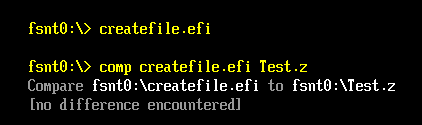
运行结果(运行结束之后我比较了一下生成文件和源文件是相同的):

ctf

特别注意:使用 ShellOpenFuleByName 创建一个文件时,要同时使用 EFI_FILE_MODE_READ ,EFI_FILE_MODE_WRITE 和 EFI_FILE_MODE_CREATE ,否则可能出现“Invalid Parameter”的错误【参考1】

完整代码下载
CreateFile

1.http://feishare.com/efimail/messages/20120331-0611-Re__edk2__Problems_creating_file_using_ShellOpenFileByName-_Bekefi__Stephen_C_.html